ubxconfig
ubxconfig is the Android application developed to configure the MS2 receiver easily, straight from a smartphone or tablet, without a PC or u-center.
It lets you:
- apply the Rover profile
- apply the Base profile (Survey-In or Fixed)
- apply the Base Caster profile (Survey-In or Fixed)
- enable the output of raw data (RAW: RXM-RAWX / RXM-SFRBX)
- monitor the serial stream in real time and — above all — automatically recover the receiver’s configuration when it has been corrupted by an accidental factory reset (typical after using u-center).
The app is designed as a field tool: all you need is your phone and, if something goes seriously wrong, a USB-C OTG cable.
Main screen
The app’s home screen is arranged as a single card holding every step of the connection and configuration procedure.
Status: an indicator at the top right with a coloured dot and a label:
- Connected (green) — connection active and working
- Connecting… (orange, with a counter from 1 to 5 seconds) — attempt under way. If the connection has not been established by the end of the fifth second, the app gives up and reports Not found
- Not found (red) — the last attempt failed
- Not Connected (grey) — neutral idle state
Mode: drop-down menu to choose the communication channel
- Bluetooth (Bluetooth Classic SPP) — the standard channel for everyday use. It relies on the devices already paired in the Android settings. The list only shows receivers whose name begins with
MS2-XXXX - BLE Nordic (Bluetooth Low Energy with the Nordic UART Service profile) — a low-power alternative that scans for visible MS2 devices every time. The selection is not stored: the scan is always fresh
USB mode is not offered as a separate Mode: it is a service channel enabled only when recovery is needed (see USB Recovery below).
- Bluetooth (Bluetooth Classic SPP) — the standard channel for everyday use. It relies on the devices already paired in the Android settings. The list only shows receivers whose name begins with
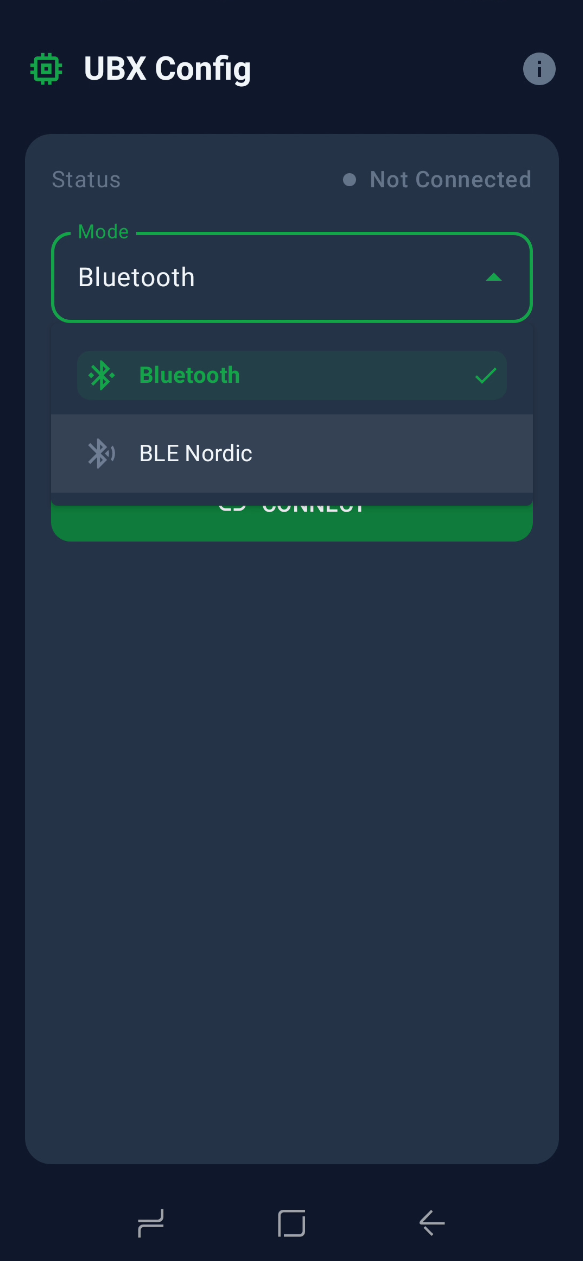
Fig.1 The Mode drop-down menu
- Device: the device drop-down menu, which depends on the Mode selected
- In Bluetooth it only lists the already paired receivers named
MS2-… - In BLE Nordic it starts a scan when tapped (lasting 5 s); if nothing is found by the end it shows Not found. Each entry shows the name, the MAC address and the RSSI in dBm
- In Bluetooth it only lists the already paired receivers named
- Receiver Configuration (shown only while connected): a clickable card leading to the configuration screen (Rover, Base Survey-In, Base Fixed, Upload custom file)
- Serial Monitor (shown only while connected): a green button that opens the terminal screen to inspect the NMEA/UBX stream coming from the receiver
- GNSS Status (shown only while connected and after a successful read): a card filled in automatically by reading the main parameters from the receiver through UBX-CFG-VALGET:
- Mode: ROVER, SURVEY-IN, FIXED BASE, UNKNOWN
- Rate: update rate in Hz
- UART1 / UART2: output protocols enabled, with the baud rate in brackets
- Elev. Cutoff: minimum satellite elevation angle in degrees
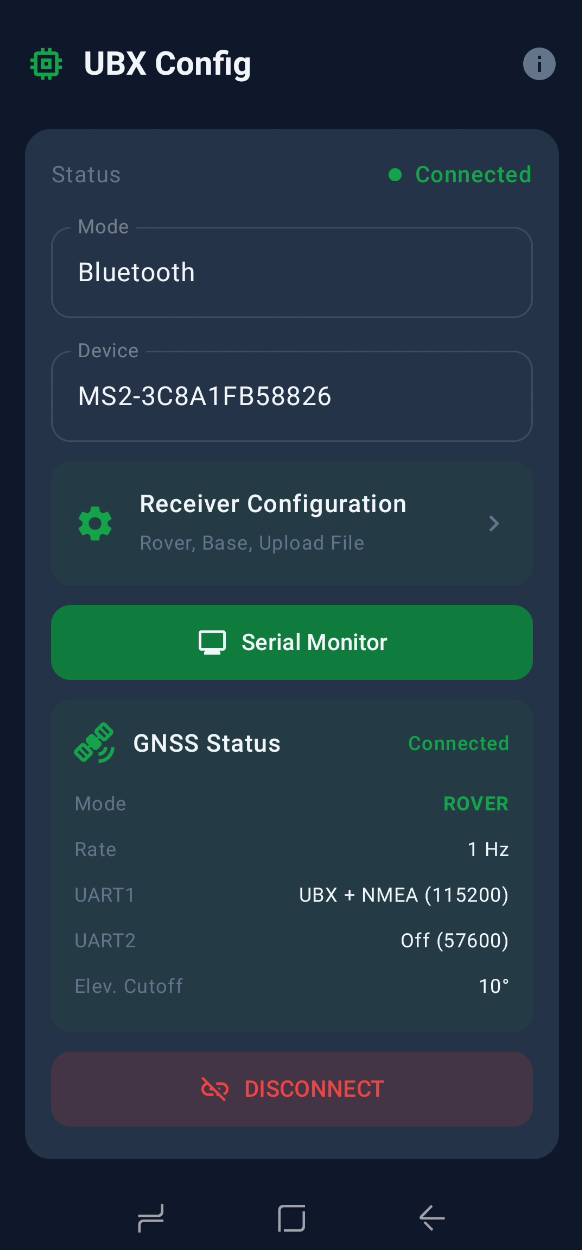
Fig.2 The GNSS Status card filled in
- Communication Error (yellow card, shown only while connected but with problems): it appears when the app cannot read the receiver’s configuration, or when it finds UART1 at a baud rate other than 115200. The text invites you to connect the USB OTG cable. Once it is connected the card disappears and the orange USB RECOVERY button takes its place
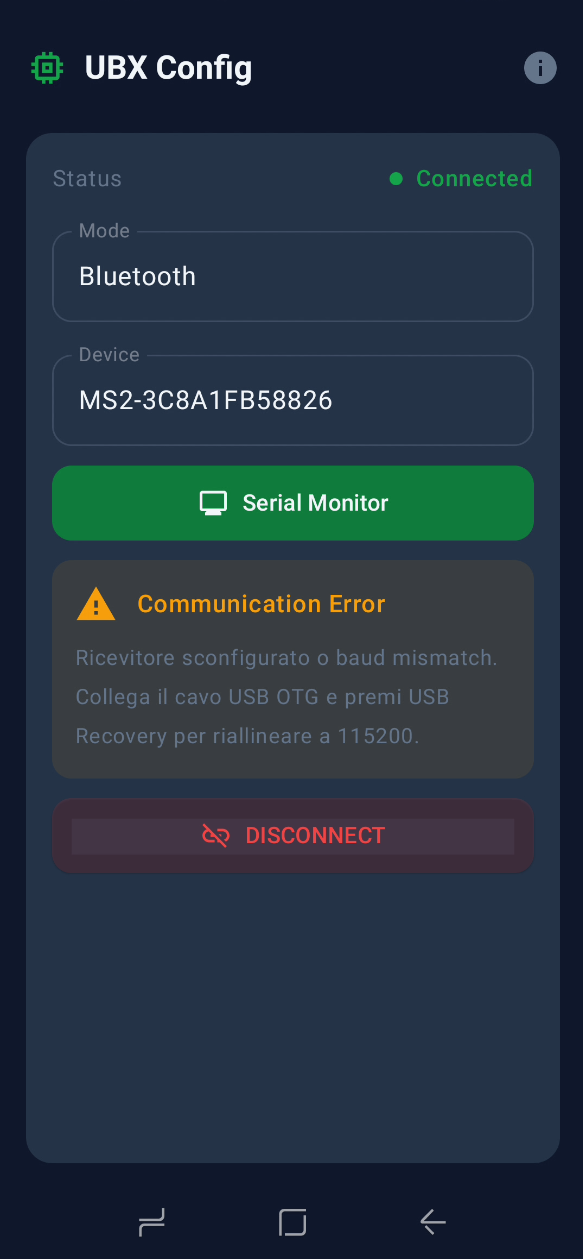
Fig.3 The Communication Error card
In this state the app is connected over Bluetooth but detects a communication problem with the receiver — typically a baud mismatch after a factory reset from u-center. To recover, simply connect a USB-C OTG cable between the phone and the MS2: the yellow card disappears and the orange USB RECOVERY button takes its place, as described in the dedicated section below.
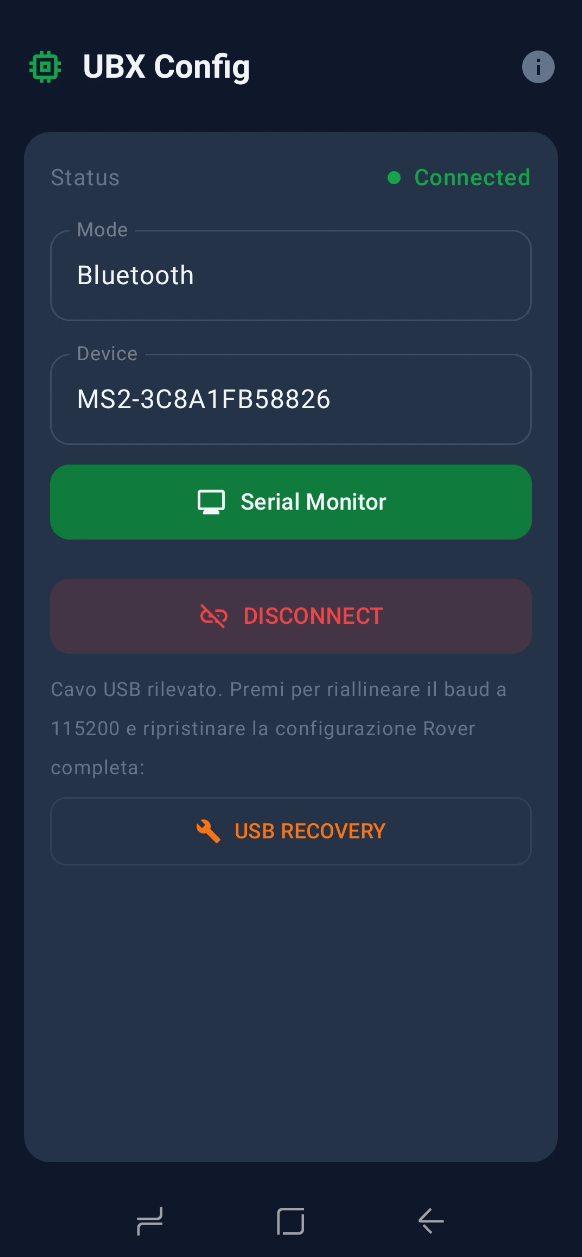
Fig.4 The USB RECOVERY button
- Connect / Disconnect: the green/red button at the bottom that opens or closes the connection for the selected Mode
Connectivity and baud rate
The Bluetooth module built into the MS2 is set to 115200 baud on the serial side, and proper communication with the internal u-blox receiver requires UART1 of the receiver to be at 115200 as well. The Rover profile applied by the app sets exactly this baud rate, and also enables UART1OUTPROT_UBX = 1 (needed so that the UBX-CFG-VALGET replies — and therefore the GNSS Status card — reach the phone over Bluetooth).
If you factory reset the receiver from u-center, the baud rate changes (the u-blox default is 38400, or 9600 in some cases) and Bluetooth communication breaks down: the BT module at 115200 reads bytes sampled at the wrong baud rate, so only rubbish comes through, with no readable NMEA or UBX. This is the situation USB Recovery exists for.
USB Recovery
A one-shot operation for restoring communication when the receiver is “out of sync”. You:
- Connect over Bluetooth as usual
- See the yellow Communication Error card appear (a sign that the receiver’s baud rate is wrong)
- Connect the USB OTG cable between the phone and the MS2
- See the yellow card replaced by the orange USB RECOVERY button
- Tap the button
At that point the app automatically carries out, with no further intervention:
- Disconnection of the active Bluetooth link
- Opening of the USB-C OTG port (system permission is requested the first time it is connected)
- A scan for the receiver’s actual baud rate, trying 9600 / 38400 / 115200 / 230400 / 460800 baud in turn and sending a UBX-MON-VER poll for each
- Once it has been identified, it sends the UBX-CFG-VALSET command to set
UART1_BAUDRATE = 115200in RAM and Flash, realigns its own serial port to the new baud rate and waits for the ACK - A check after the change, sending a second MON-VER at 115200 to confirm that the receiver answers
- Application of the whole Rover configuration (9 UBX-CFG-VALSET frames, RAM+BBR+Flash layers) frame by frame, waiting for a UBX-ACK-ACK between one and the next
- Closing of the USB port
Throughout the operation a dialogue in the middle of the screen shows the state in real time (“Trying X baud…”, “Receiver found at X baud”, “Applying Rover N/9…”). At the end a second dialogue confirms the outcome.
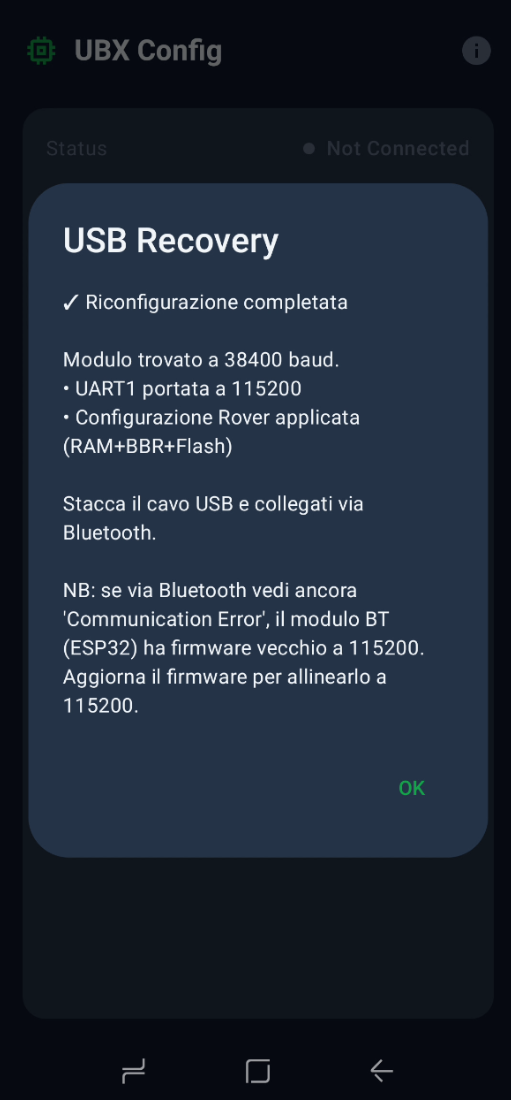
Fig.5 Recovery confirmation dialogue
You tap OK, unplug the USB cable, reconnect over Bluetooth and the connection works again.
Important: during recovery the app does not stay “USB connected” permanently. It is an atomic operation: open, repair, close. USB mode does not even appear in the Mode drop-down menu — it is an automatic routine hidden behind the Recovery button.
Receiver Configuration
This screen is reached from the card of the same name on the home screen (shown while connected). It applies one of the three main profiles — Rover, Base Survey-In or Base Fixed — or uploads a custom UBX configuration file. The layout of the page adapts automatically to the mode chosen in the Receiver Mode drop-down menu at the top: only the fields relevant to the selected profile are shown.
In Rover mode the layout is minimal: the Receiver Mode = Rover drop-down menu, the Frequency drop-down menu to choose the update rate (1, 2, 5 or 10 Hz), then the collapsible Advanced button. Expanding it (the green gear icon, arrow pointing up) gives access to the less common parameters — Cutoff (minimum satellite elevation angle, range 0–40°, changed with the −/+ stepper or by typing the number directly), the RAW data switch (enables RXM-RAWX and RXM-SFRBX on UART1) and Save to Flash (a definitive commit to flash as well as to RAM). At the bottom, the green Send Configuration button sends the configuration to the receiver.
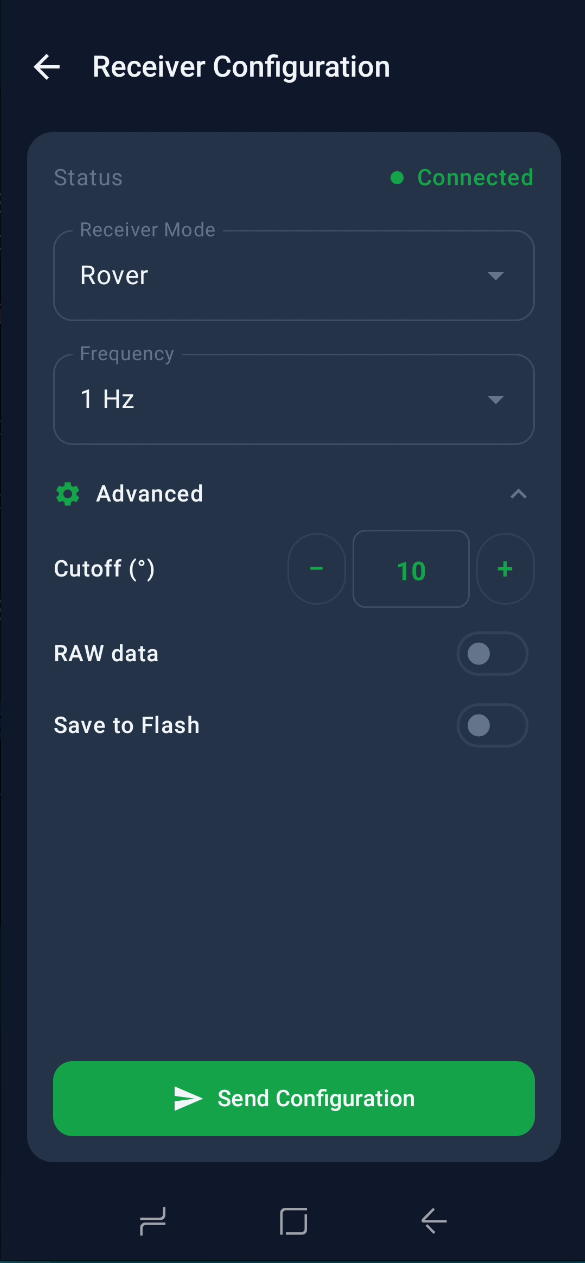
Fig.6 Rover (Advanced)
Choosing Base from the Receiver Mode drop-down menu changes the screen: a Base Mode sub-menu appears with two entries, Survey-In and Fixed Position. Survey-In is the quicker one: the receiver positions itself progressively, accumulating measurements until two conditions are met at the same time — the Minimum duration in seconds (60 s by default) and the Minimum accuracy in metres (5.0 m by default). For the precise set-ups typical of fixed NTRIP servers it makes sense to raise these values considerably (600 s or more, and 1.0 m) to guarantee a base position with sub-metre uncertainty.
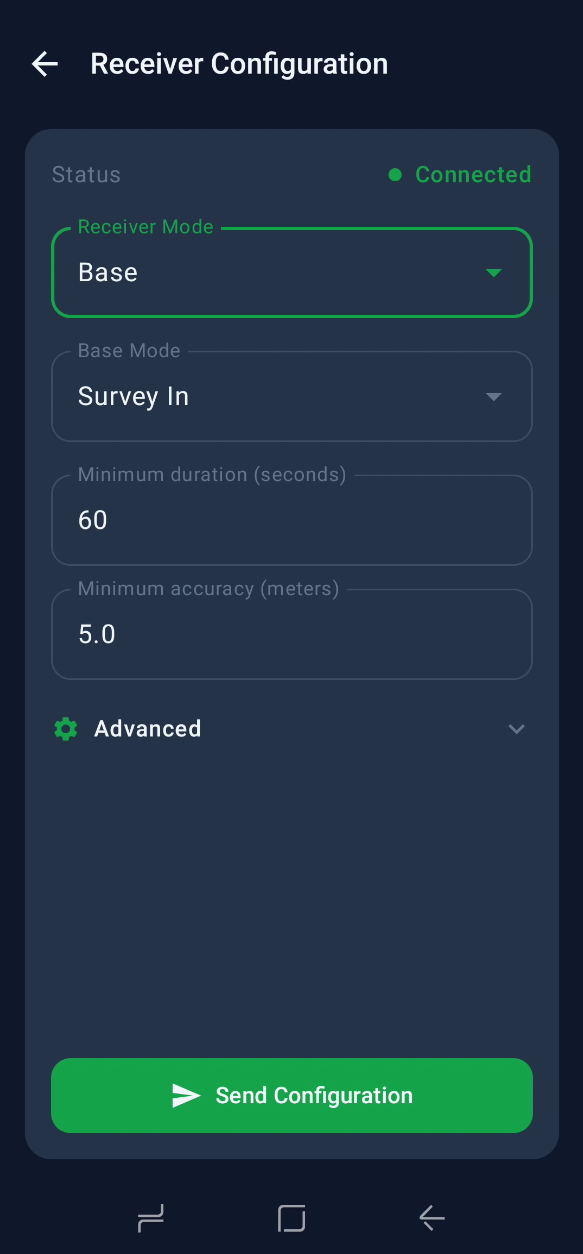
Fig.7 Base Survey-In
Fixed Position mode is for installations where the coordinates of the base point are already known — typically from a geodetic benchmark, from a Survey-In stored earlier, or from a traditional survey. The Coordinates drop-down menu selects the reference system: LLH (latitude and longitude in decimal degrees, height in metres) as in the screenshot, or ECEF (X/Y/Z in metres, geocentric cartesian system). Once the three coordinates have been entered, the Send Configuration button sends them to the receiver, which immediately enters TMODE = 2 (fixed) and starts generating RTCM3 corrections on the configured channels (UART2 by default, or UART1 in Caster mode).
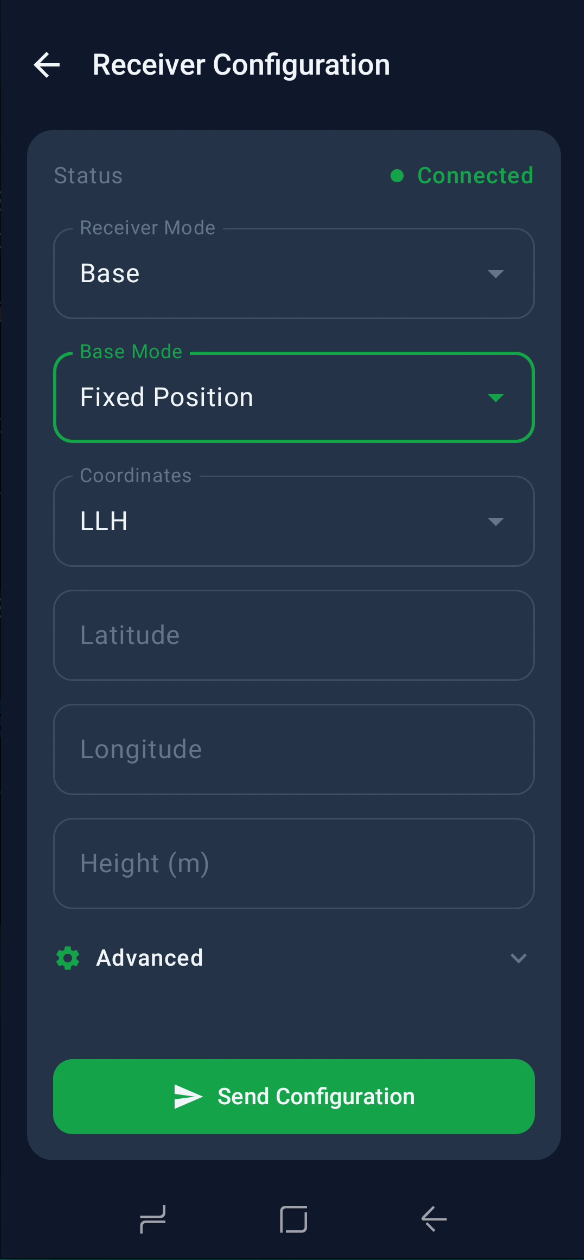
Fig.8 Base Fixed (LLH)
In every mode the Advanced panel is collapsed automatically when Receiver Mode changes: this keeps the page from growing too long when you move from Rover — which is compact — to Base Fixed, which already has 4 visible fields. You reopen Advanced by hand when you need it.
Rover
Profile for use as a mobile receiver at a configurable rate (1, 2, 5, 10 Hz):
- NMEA output on UART1 (GGA, GSA, GSV, RMC, GST and GNS enabled; GLL and VTG off)
- UBX off (unless RAW is enabled — see below)
- All the RTCM messages disabled on both UARTs
- TMODE off
- Cut-off elevation 10°
- UART1_BAUDRATE = 115200, UART2_BAUDRATE = 57600
- Optional RAW data tick box: enables RXM-RAWX and RXM-SFRBX on UART1 and sets
UART1OUTPROT_UBX = 1(needed for the raw UBX stream)
Base Survey-In
Profile for a base station that positions itself progressively:
- Minimum survey duration in seconds (configurable)
- Target accuracy in mm (configurable)
- RTCM3 output (1005, 1077, 1087, 1097, 1127, 1230) on UART2 towards a radio or an NTRIP caster
- Caster mode can be selected: the RTCM output goes to UART1 instead of UART2 (useful when integrating with a bridge that republishes on an NTRIP server)
- RAW data tick box as in the Rover profile
Base Fixed
Profile for a base station with known coordinates (LLH or ECEF):
- Coordinates entered by hand or taken from the last Survey-In
- Same RTCM3 scheme as Survey-In
Upload File
Loads a UBX configuration file in text form (
.txtwith hexadecimal key-value pairs) and applies the commands to the receiver. Useful for custom presets or for files supplied by SoluTOP support.
For each profile you choose the target layer the configuration is written to:
- RAM — temporary, lost at reboot
- BBR — battery-backed RAM, survives a reboot but not a power cut
- Flash — permanent
- All — RAM + BBR + Flash (recommended for permanent changes)
The commands are sent in batches of 64 keys, waiting for an ACK on each one. A progress bar shows how far it has got.
Serial Monitor
A terminal screen showing the serial stream from the receiver in real time. Three display modes:
- ASCII: printable text only, non-printable characters replaced with
. - HEX: byte by byte in hexadecimal
- Auto (default): detects NMEA and UBX, formatting NMEA as text and UBX in hex with a decoded header (
[UBX cls id])
Toolbar at the top:
- Back (← closes the screen and stops reading)
- Pause / Play (suspends or resumes the stream)
- Clear (empties the buffer)
The lines are coloured by type: green for UBX ACK, red for NAK, blue for other UBX messages, light grey for NMEA.
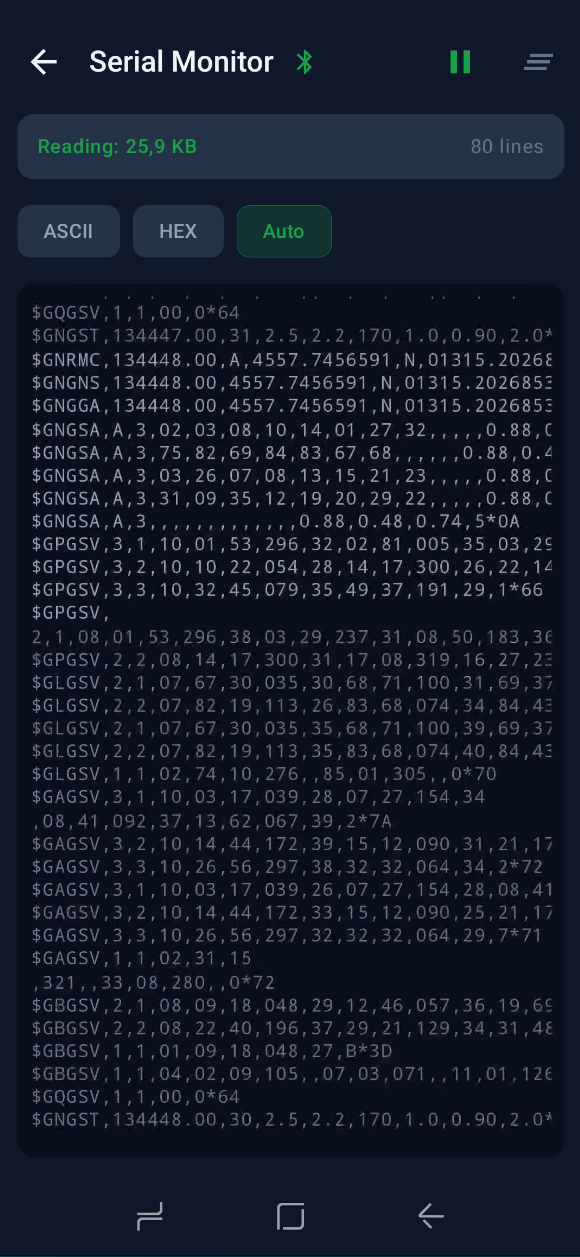
Fig.9 Serial Monitor (Auto)
Automatic updates
The app checks automatically — at most once every 24 hours — whether a new version is available in the public release repository through the GitHub API. The timestamp of the last check is saved in SharedPreferences; within the following 24 hours the app does not query GitHub again, so start-up stays quick even on a slow network and the GitHub API rate limit is respected (60 requests per hour for an unauthenticated IP address).
If a tag more recent than BuildConfig.VERSION_NAME is found, the app shows a dialogue with the version number available, the release notes (the first 300 characters) and two options: Download (which opens the download of the APK from the release) or Later.
The same check can be run by hand at any time from the About dialogue (the ℹ︎ icon at the top right) with the Check for updates button. The manual check ignores the rate limit and always gives a visible answer (including “App up to date” or any network error).
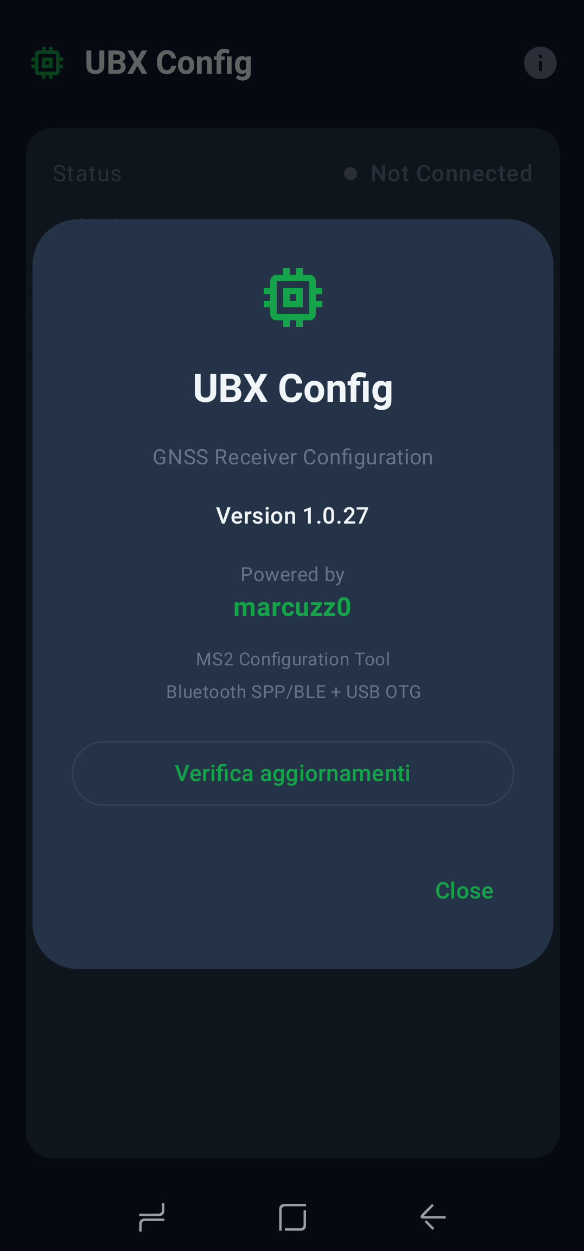
Fig.10 About dialogue
Resilience to disconnections
Detecting an unsolicited physical disconnection (the BT module switched off, the USB cable unplugged, going out of range) is notoriously delicate on Android: BluetoothSocket.isConnected is not updated by the kernel when the radio link drops, and outputStream.write can be buffered silently. The app combines several mechanisms in parallel so that the state of the interface always matches reality:
Bluetooth SPP — three independent mechanisms:
- a
BroadcastReceiverforACTION_ACL_DISCONNECTEDregistered inconnect(): it catches the system event as soon as the radio link drops (latency about 1 s) - a 256-byte heartbeat write (32 concatenated UBX-MON-VER messages) every 2.5 s on the polling thread: it saturates the BlueZ kernel buffer and forces a
Broken pipeif the module has disappeared - a stream-frozen detector: if
inputStream.available()stays at 0 for 3 cycles in a row (about 7.5 s) — even though a receiver in the Connected state should always be emitting NMEA continuously — the socket is declared dead
2 consecutive failures of the heartbeat are needed before the app changes state (which avoids false positives on transient glitches). The polling runs on
Dispatchers.IO, so it carries on working with the app in the background too.- a
BLE — the
BluetoothGattCallbackreceivesSTATE_DISCONNECTEDas soon as the link is lost and updates the interfaceUSB — polling every 1.5 s on
UsbManager.findDevice(). If the cable is physically unplugged, the app resets the USB state only; the GNSS Status card on Bluetooth stays visible if the BT connection is still upCrash safety — a global
Thread.UncaughtExceptionHandlerabsorbs any transportIOExceptionthat escapes the try/catch blocks of the individual managers, keeping the exception from killing the app. The polling loops also have their own try/catch blocks so that they do not die silently on an unexpected errorGNSS read after connecting, with exponential backoff — on the first connection the app reads the receiver’s configuration through three
UBX-CFG-VALGETattempts with timeouts of 2 s / 3 s / 4.5 s and pauses of 0 ms / 300 ms / 800 ms between them. This masks transient Bluetooth glitches (jitter, NMEA filling the buffer before the UBX reply) — the GNSS Status card is filled in even if a single frame is lost, and the yellow Communication Error card appears only when all three attempts have failed
Permissions required
At first start-up the app asks for:
BLUETOOTH_CONNECT— needed to connect to paired devices (Android 12+)BLUETOOTH_SCAN— needed to scan for BLE devicesINTERNET— needed for the update check through the GitHub API- Access to the USB OTG device — requested from the system only when USB Recovery is attempted
Installation
The APK is available here. On Android you have to allow installation from unknown sources for the browser or file manager you use.
Video
A complete tutorial is available here.