Splitting the serial port
Some applications require the Bluetooth serial port stream to be split across several serial ports. This is done with serial port splitting software, which simply duplicates the existing port into further virtual ports.
Software used
This guide only uses free software for Windows:
Virtual Serial Port Emulator (VSPE)- Software for splitting COM portsLefebure NTRIP Client (Windows version)- NTRIP client for connecting to the networks
Configuration steps
So that you do not have to set VSPE up from scratch every time you start it, the configuration can be saved once and reloaded later. The first time, follow these steps:
- Add a Bluetooth device (1) from the relevant Windows command, look for the receiver with the Windows Bluetooth search (2) and pair it as shown in the figure below
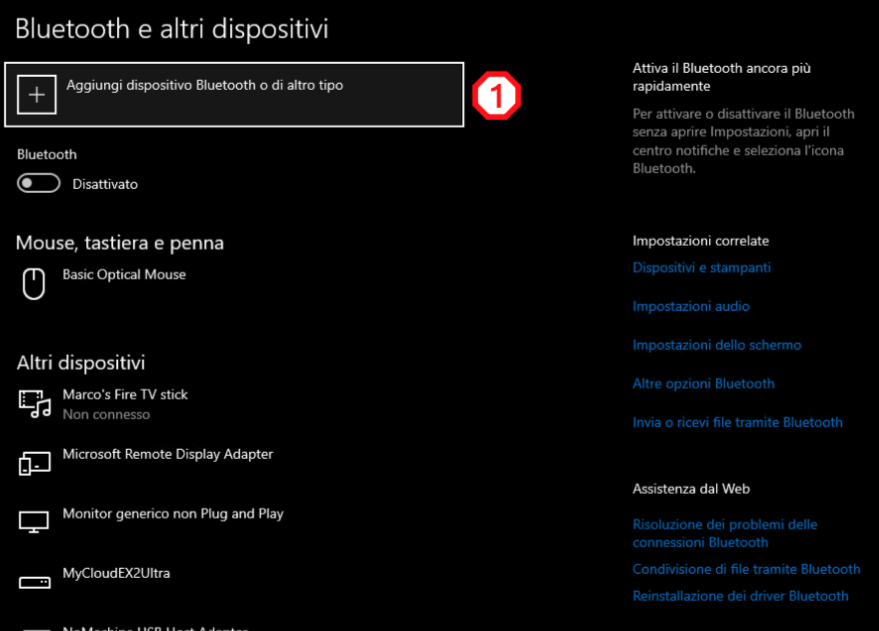
Fig.1 general device-adding screen
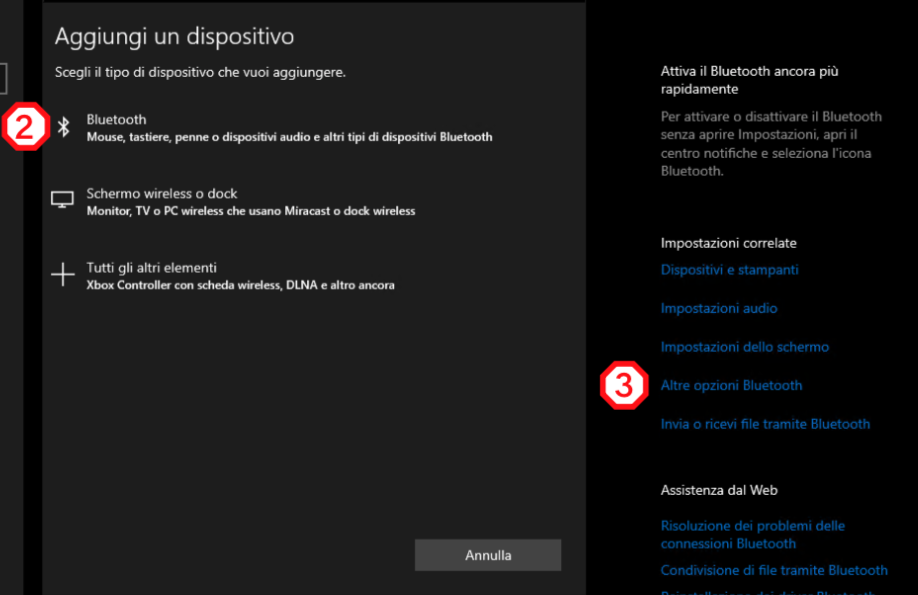
Fig.2 adding a Bluetooth device
- Open the Bluetooth settings under “More options” (3) as shown in the figure above and check which COM port is associated with Bluetooth (COM15 in this example) as SPP (4), as shown in the figure below
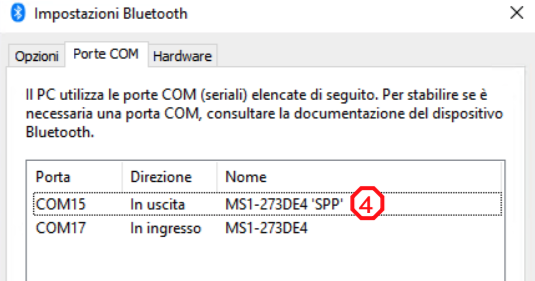
Fig.3 list of the Bluetooth COM ports
- Start VSPE, stopping the service if it is running (5), then add a new connection (6) as shown in the figure

Fig.4 VSPE main screen
- Choose Split (drop-down menu) and split the port into two new COM ports of your choice, as shown in the figure below
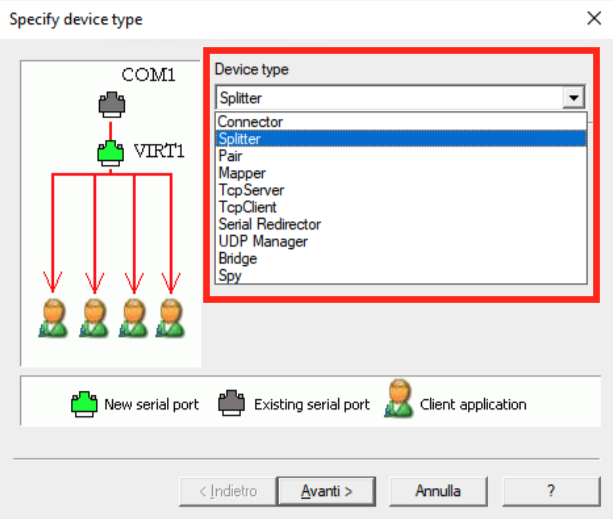
Fig.5 choosing the mode in VSPE
- Choose the source COM port (COM15 in this example) (7) and the destination virtual COM port (8) (COM19 in this example), set the baud rate to 115200 (10) and clear the RTS and DTR entries under “Initial state of modem registers” (11), as shown in the figures below
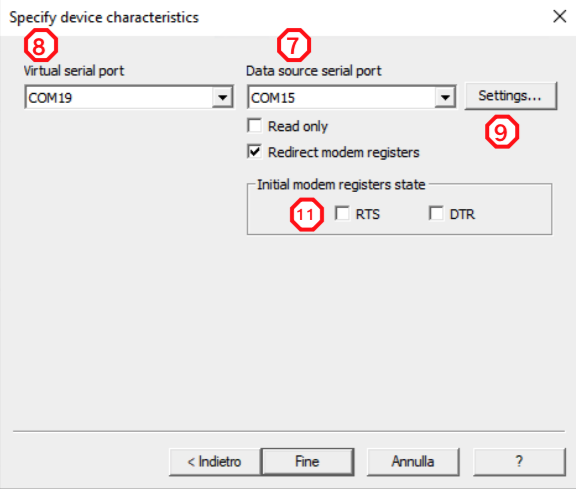
Fig.6 choosing the source port and the virtual port
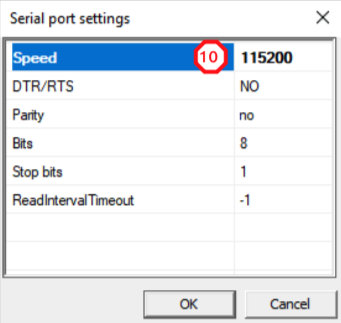
Fig.7 choosing the COM port parameters
Tip
Do not pick virtual COM ports with very high numbers. Lefebure and other third-party software do not get along with high numbers…
Repeat the same procedure for the second virtual port (COM20 in this example), this time starting from source port COM19
At this point you should have
- a “source” port
- a “virtual” port (12)
- a “virtual” port (13)
Start the service with the “Play” button (14) and check that its status is “ok” for COM19 (12) and “Ready” for COM20 (13). These last two COM ports are free and carry exactly the same serial stream (NMEA)
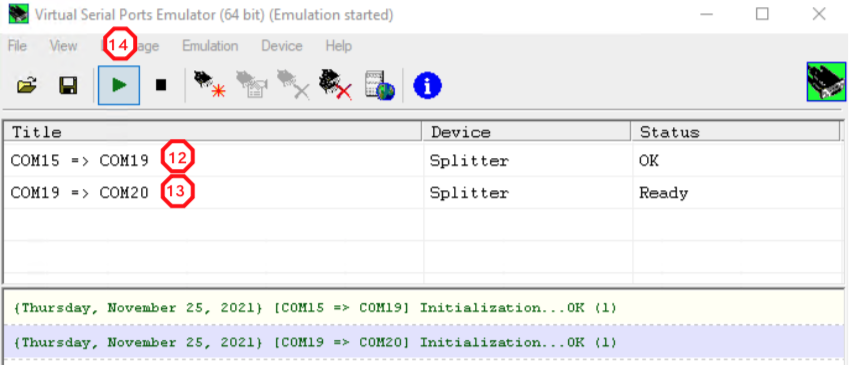
Fig.8 starting the service
Tip
Save the profile with the “Save profiles” button, giving it a name so that it can be recalled more easily later on.
- Start Lefebure and configure the rover on the first free COM port
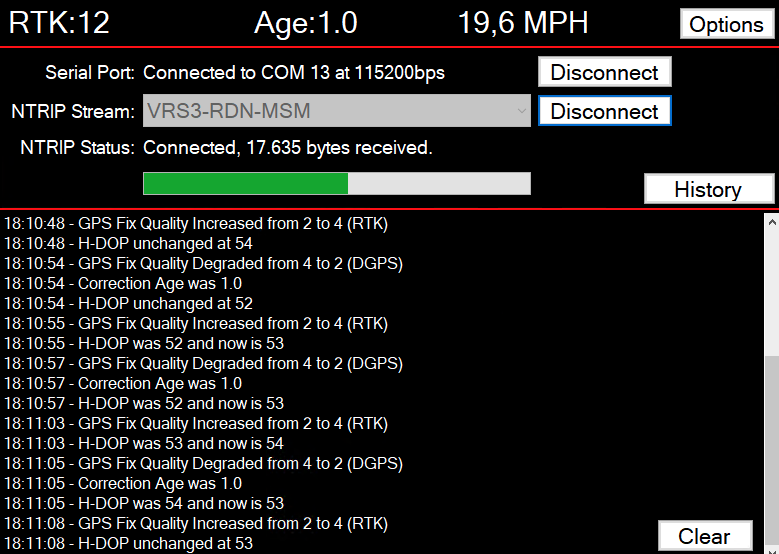
Fig.9 Lefebure NTRIP Client in RTK
- As soon as the receiver goes differential, use the second free COM port for the program that needs the differential correction (ground-penetrating radar, echo sounders and so on). Here we use TeraTerm to monitor the serial stream of COM20. Note the NMEA sentences shown in the figure below
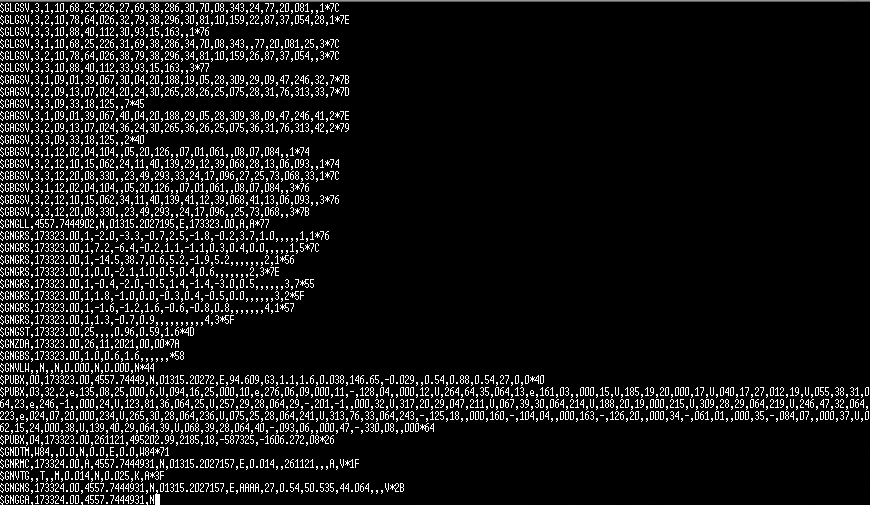
Fig.10 TeraTerm showing the NMEA sentences
Video
The procedure is shown here.